Plain text with a few headings and bullet points used to be enough for a blog post. Readers now expect tables, comparisons, checklists and video in the middle of an article, the way they get them on Substack. Djangify blog posts are stored as HTML, so you can have all of that without changing your blog app or installing a plugin. This article is a working example. Every box, table and layout on this page is a Djangify content block, and each one comes with the prompt you would give Claude to get it.
- Long-form articles give search engines and AI tools more to match against a question, and give readers a reason to trust you.
- A long article only works if it is easy to move through. Content blocks break up the text so it never reads like a wall.
- Djangify posts are HTML, so you can paste a block straight into a post or ask Claude to add one for you.
- You do not need every block. Two or three that fit the article are enough.
Add a Key Takeaways block at the top of this article. Write 3 to 5 bullets that sum up the main points in plain language.
Add a Contents List block at the top of this article. Link each item to the matching H2 heading and give every H2 a matching id.
Why long-form content works for search
Search engines try to match a page to a question. A short post answers the main question and stops. A long guide answers the main question and the follow-up questions a reader asks right after it, which gives search engines and AI tools more to match. It also gives you room to link to your own related posts, which helps readers and crawlers find the rest of your work.
Length is a result, not a target. A 2,000 word article that repeats itself will not beat a 900 word one that gets to the point. The aim is to cover the topic properly, then make that coverage easy to move through.
| What you are comparing | Short post | Long-form guide |
|---|---|---|
| Questions answered | The main one | The main one plus the follow-ups |
| Room to show experience | A line or two | Examples, mistakes, results |
| Internal links | One or two | Several, in context |
| Best for | A quick answer or an update | A topic you want to own |
Turn the text below into a Comparison Table block with a caption, a header row and a bold first column. Keep every cell short.
Add a Facts Row block with three facts from the text below. Each fact is a short number or word plus a label of five words or fewer.
Why E-E-A-T needs room to show
Google describes the quality of a page using experience, expertise, authoritativeness and trustworthiness, usually shortened to E-E-A-T. Those signals are hard to show in 300 words. They show up in the details: what you tried, what went wrong, what the result was, and who you are.
A long article earns its length when each section answers a question the reader would otherwise have to leave the page to ask.
Turn this sentence into a Quote block with a light background and a left border. Add the speaker's name underneath: [name].
What a long article can carry
Signals for search
- Clear headings that match real questions
- Links to related posts
- Answers to follow-up questions
Signals for readers
- Your own examples and results
- Honest limits and mistakes
- Your name, bio and sources
Turn the text below into a Two Lists block. Give the section a title, then two boxes, each with a short heading and three to five bullets.
Your blog is already HTML
When you save a Djangify blog post, the text is stored as HTML, and the page shows exactly that HTML. A table is a table tag. A box is a div with a class. Nothing converts it into something else on the way out, which is also why search engines can read every word and every link in it.
The content blocks are a set of ready-made layouts. Each one has a name, a small piece of HTML, and styling that already ships with your Djangify shop and follows your theme. You choose a block by name, Claude writes the HTML, and you paste it in or have Claude add it to the post for you.
Blocks work best in long articles, where they break up the text. They also work in short posts and on info pages, so use them anywhere a plain paragraph would do the job less well.
Turn this sentence into a Callout block with a short label above it. Use it for a tip, a warning or one key point.
To publish the post you need to write the text, check the headings, add the images, set the category, write the summary, add the meta description, check the links, preview it on your phone and then press publish.
Write the text. Check the headings and links. Add the images and the summary. Preview it on your phone. Publish.
Turn the two versions below into a Before and After block. Put the original text in the Before panel and the improved text in the After panel.
Where you can use them
Blocks are not limited to blog posts. They work in any rich text area of your Djangify shop that displays with the standard page styling, which covers most of the places you write.
Places you can use content blocks
- Blog postsAll content types, including long articles and short bites.
- Info pages and policiesGuides, docs and help pages. They build their own contents sidebar, so a Contents List is rarely needed there.
- Product descriptionsBoth the main description and the long description on a sales page.
- Page sectionsThe Text and Two Column sections on your pages.
- Topic cluster pagesThe intro and the main text sections.
- Hosted tool pagesThe description and the more-info text.
Turn the list below into a Checklist block with the primary theme shade as the background. Give each item a bold line and a short line of detail.
Some page areas, such as the Hero, Three Column and shop list sections, use their own layout and do not carry the block styling yet. Use a Text section in those places and put the block there.
A comparison table or a Facts Row can do a lot of work on a sales page, because buyers compare before they buy. A FAQ block answers the objections that stop a purchase, and a Product Box gives a clear next step.
Not on Djangify? Use them anyway
The blocks are ordinary HTML with a small stylesheet, so they are not tied to Djangify. If your site, blog or page accepts HTML code, you can use them. That includes WordPress (in a Custom HTML block), Ghost, Webflow, Shopify pages, or a hand-built site.
- Add the stylesheet onceLink it in your page head or paste it into your site's own CSS.
- Wrap your contentPut your article inside a div with the class page-content.
- Paste the blocksAsk Claude for a block by name and paste the HTML where you want it.
The stylesheet starts with a short list of theme shades at the top. Change them to your own brand shades and every block follows. The Copy button script is optional: without it the Prompt Box still shows the text, and readers can select and copy it by hand.
Some visual editors delete any tag or class they do not recognize when you save. If that happens, a block loses its box or its styling. The Djangify editor allows every block in this article. On another site, paste one block into a draft, save it, open it again and check it is still there before you build a whole article. If the blocks vanish, add them through the page's HTML or source view instead of the visual view, and avoid re-saving the page in the visual editor afterwards.
I do not use Djangify. Here is the HTML for my page: [paste]. Use the Djangify Content Blocks skill file and the standalone stylesheet to add a [block name] block, and tell me exactly where to paste the stylesheet.
How it looks on a phone
Most readers will open this on a phone, so every block rearranges itself for small screens. Two-column layouts stack, tables scroll sideways inside their own box, and videos keep their shape. Open this page on your phone and scroll back up to check.
Images can sit in a gallery too. Here are three quote cards from the Self-Talk Effect gallery. Tap or click any image to see the full size, then tap again to close it.
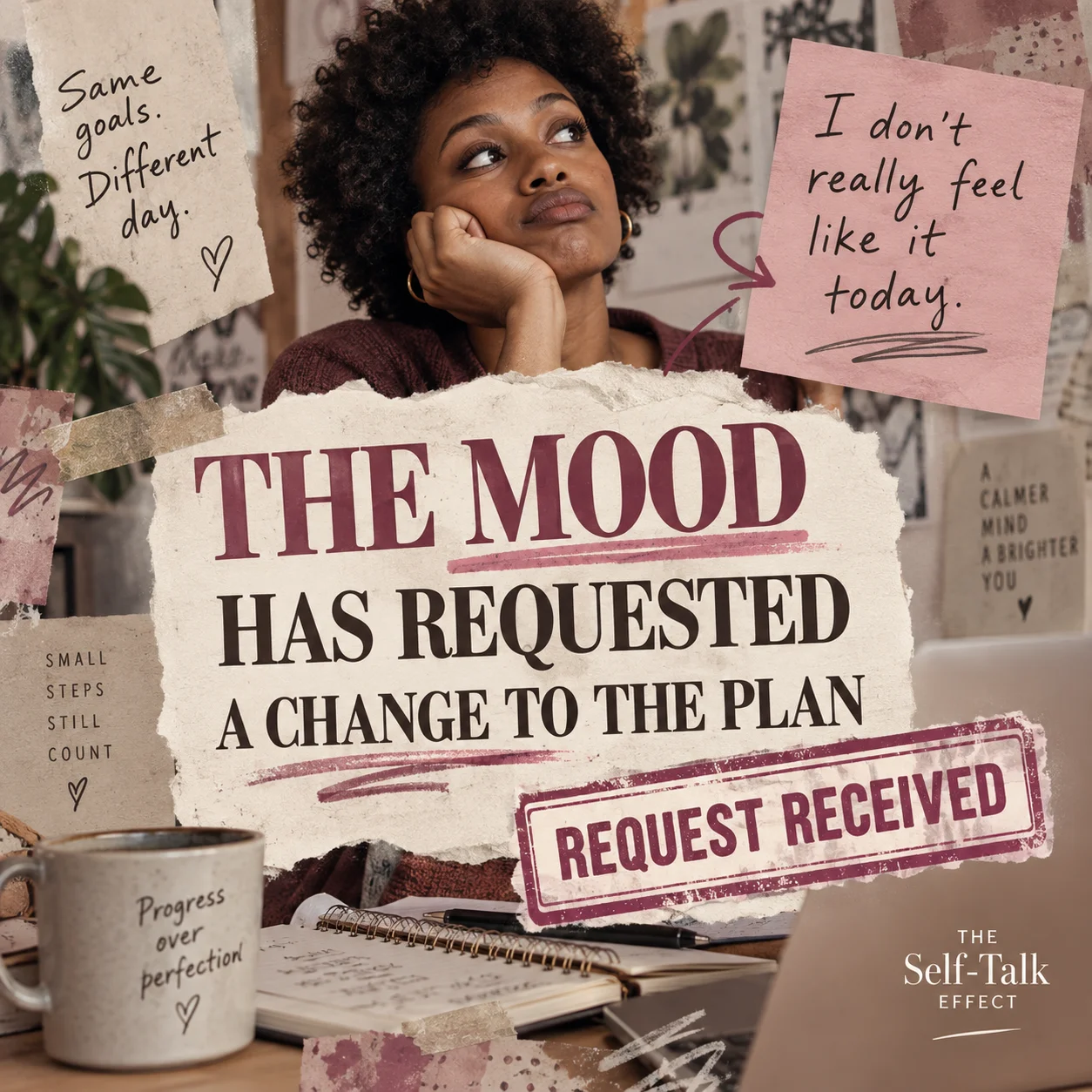

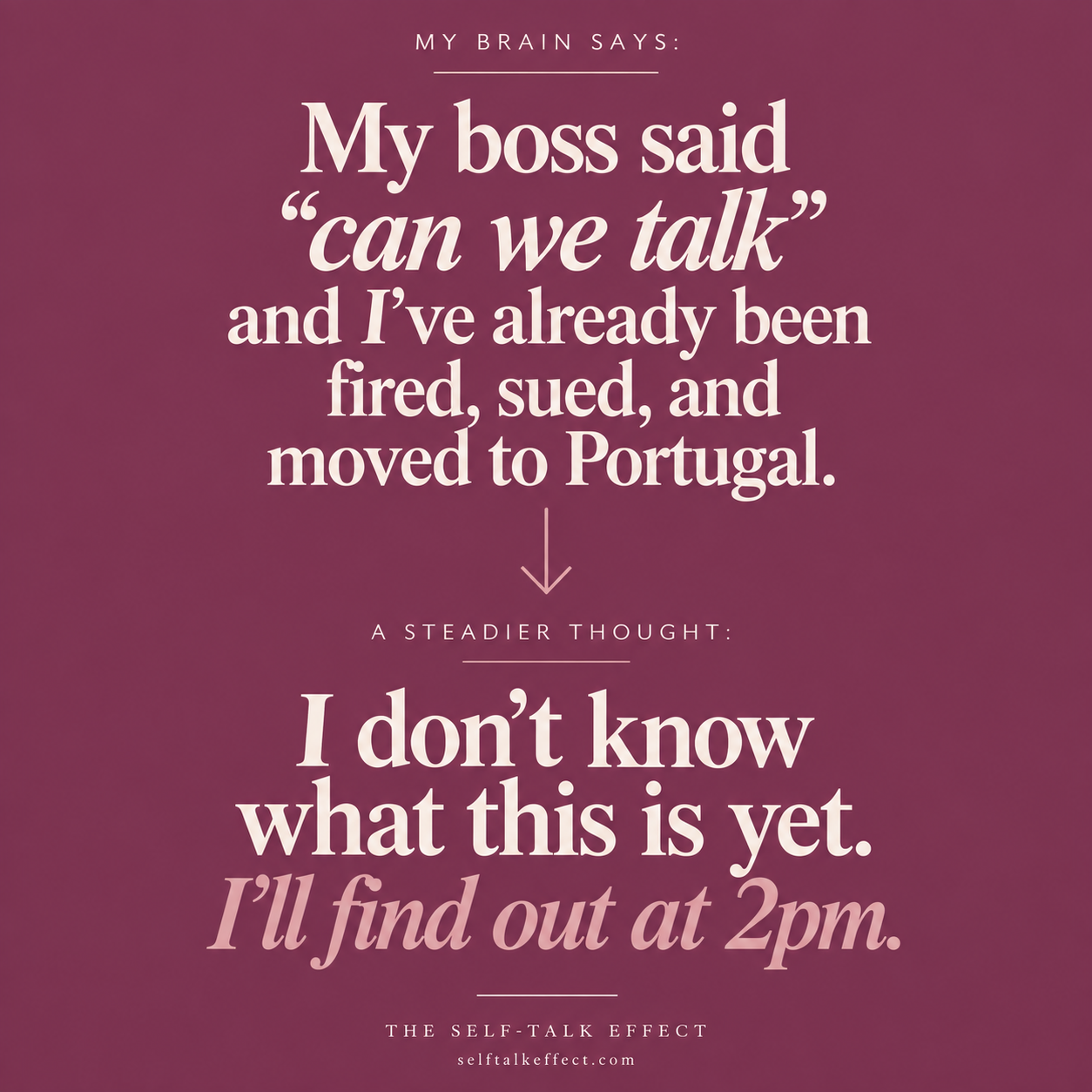
Build an Image Gallery block from these three image URLs: one large image on the left and two stacked on the right. Write alt text for each image that describes what is in it. Make each image open full size when clicked, and give every lightbox id on the page a unique name.
Video works the same way. On a large screen a landscape video and a vertical Short sit side by side at the same height. On a phone they stack, with the Short centered below the video.
Add a Video block for this YouTube link: [link]. Use the landscape layout for a normal video and the portrait layout for a Short. To show a landscape video with a Short beside it, use the Video Pair layout. For two or three landscape videos, use the Video Grid layout.
The full set of blocks
The blocks you have already seen are Key Takeaways, Contents List, Comparison Table, Facts Row, Quote, Two Lists, Callout, Before and After, Image Gallery and Video. These are the rest.
Numbered Steps are for anything a reader does in order.
- Write the articleGet the whole thing down first, without worrying about layout.
- Pick the blocksLook for places where the text is a list, a comparison or a sequence.
- Ask Claude by nameGive it the block name and the text, and paste back what it returns.
- Preview on your phoneCheck that tables scroll and nothing runs off the screen.
Turn the text below into a Numbered Steps block. Give each step a short bold title and one sentence of detail.
A Checklist is the same idea, with the primary theme shade behind it so it stands out from the page.
Your block checklist
- Every image has alt textDescribe what is in the picture, in a sentence.
- Every heading used in the contents list has an idOtherwise the link has nowhere to jump to.
- Tables read well on a phoneScroll them sideways and check the first column.
- No more than three blocks per screenBlocks break up text. Too many break up the article.
Turn the list below into a Checklist block with the primary theme shade as the background. Give each item a bold line and a short line of detail.
A Prompt Box holds text that a reader should copy, such as a prompt, a command or a snippet of code. Every box on this page that starts with "Ask for this" is one.
Put the text below into a Prompt Box block with a Copy button, so a reader can copy it in one click.
A Link Row is a set of buttons with small icons, useful for a channel, a download, a shop page or a sign-up.
Add a Link Row block with these links: [label and URL for each]. Choose an icon for each one from play, mail, download, arrow and book.
Which blocks to use, and which to skip
You do not need every block in every article. Long articles gain the most from them, but two or three that fit are plenty. A good rule is to look at your draft and ask what each section is. If it is a list, use Steps or a Checklist. If it compares two things, use This vs That or a Comparison Table. If it holds a number, use Facts Row. Anything else can stay as a plain paragraph.
Use a block when
- The text is a list, a sequence or a comparison
- A reader might want to copy something
- You want a key point to stand out
Skip it when
- A paragraph says it clearly already
- You have used three on the same screen
- It would repeat the block above it
Turn the text below into a This vs That block with two side-by-side boxes, each with a short heading and three bullets.
How long should a long-form article be?
Long enough to answer the question and the follow-up questions. That is often 1,200 words or more, but length is a result of covering the topic, not a target.
Can Google read the blocks?
Yes. Each block is plain HTML on the page: real headings, real lists, real tables and real links.
Do blocks work on info pages and short posts?
Yes. They use the same page styling, so they work anywhere your content is shown.
Do I need to know HTML?
No. Tell Claude the block name and give it your text. It returns the HTML, or edits the post for you through the Djangify MCP connector.
Turn the questions and answers below into a FAQ block with open-and-close boxes. Keep each answer to two or three sentences.
Blogging Still Works: Why Search-Led Articles Still Drive Traffic
A blog post keeps working long after a social post disappears.
Read more →What Happened When Google Deindexed Over 100 of My Articles
What happened when AI-written articles were pasted in without being changed.
Read more →Use AI, Don't Just Accept It
How these articles actually get written, and what changes between draft and publish.
Read more →Add a Featured Articles block with these three posts: [titles and URLs]. Show a title, one sentence and a Read more link for each.
Own Your Digital Shop Outright
The Self-Hosted Digital eCommerce Builder gives you the full Djangify codebase, checkout, delivery, customer accounts, blog and SEO tools, including every content block in this article, on your own hosting for one payment.
See the Self-Hosted Builder →Add a Product Box block with the primary theme shade as the background. Use this heading, text and button link: [heading], [text], [link].


